







MS Access errors and problems are common among Access database users. One such problem is the Access table not showing all records issue that users encounter when there is an issue with the records in the database table. In some cases, it appears when the properties of the form are incorrect. In this article, you will learn why this issue occurs. You will also see stepwise solutions of various workarounds to fix the Access table not showing all records issue.
Reasons behind the Access Table not Showing All Records Problem
There are several reasons behind this issue:
- Permanent filter is applied to a form or report
- Database is corrupted
- Hidden records
- Missing or deleted records
- Insufficient permissions to access table records
- Corrupted index
- Missing primary key in the table
- Fields size limitation
- Incorrect state of the data entry property for the form
Methods to Resolve the Access Table not Showing All Records Issue
Before moving on with the methods, check the following:
- The primary key field is not empty
- The primary key is unique
If you have added a unique primary key to a table, see if you have sufficient permissions to access the table records. But, if you are still not able to see the complete Access table records, follow the methods explained below.
Note – Before applying the below methods, take a backup of your Access database file.
Method 1: Remove the Filter using the Object’s Property
If you are unable to see the complete Access table records, it could be due to a permanent filter applied to a form or a report. You can troubleshoot this by checking for any applied filters in the Navigation Pane > Design View. If there is any filter is applied, delete it. This should help you troubleshoot the issue.
Follow the steps below to remove a filter:
- Open the problematic Access database file.
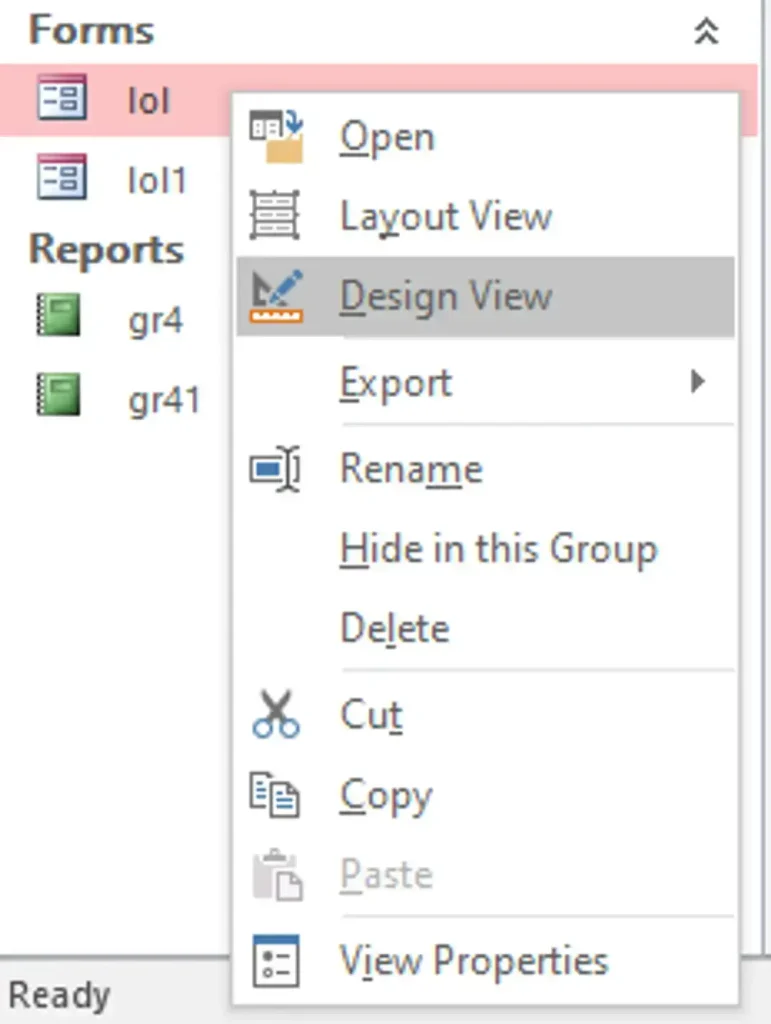
- From the Navigation pane, open a form/table or a report and right-click on it. Click on Design View from the context menu.
- Now, click on Property Sheet in the ribbon.

- The Property Sheet window will appear. Click on the three dots to invoke the Query Set builder.

- The Object’s record set query opens in the Query Builder window.
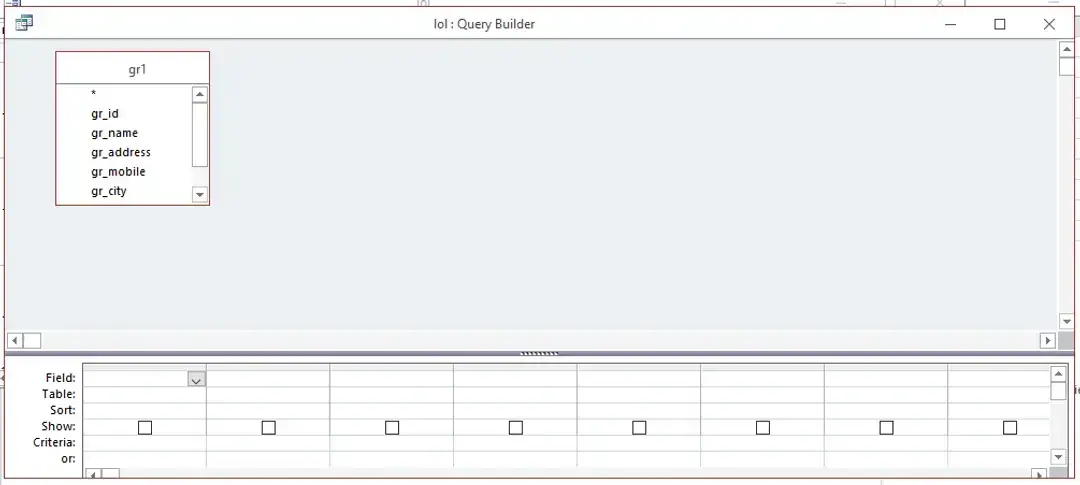
- In the query design grid, search for the filtered fields and filter criteria.
- Click on the gray bar to select the column with the filtered field.
- Click the Delete option to remove the filtered field and its criteria.
- Repeat the above steps for each filtered field in the table.
- Close the query designer.
- You will get a prompt to save the applied changes to the property. Click Yes.
Method 2: Alter the Field Size and Limit
Each field in an Access table has a specific size and limit. If the text inside it is more, then it may not show properly. To tackle this issue, you can change the field size by resizing the rows and columns accordingly.
Method 3: Check Records with Multiple Data Types
Many users have reported a bug that causes the fields with both text and numeric data to lose text data upon Paste Append. Because of this, they see incomplete Access records. If you are also facing this issue close the Excel file after copying the data and then use Paste Append. This should help you append the data to the fields without any loss.
Method 4: Verify Navigation Options
Sometimes, an Access table doesn’t show all records if there are certain display options disabled. You can check for these options in the Navigation Options window. Here is what to do:
- Open the problematic Access database file on your system.
- Right-click on the navigation pane and click Navigation Options from the context menu.

- The Navigation Options wizard will open. Select all the given options under the Display Options section, including Show Hidden Objects, Show System Objects, and Show Search Bar.
- Click OK.
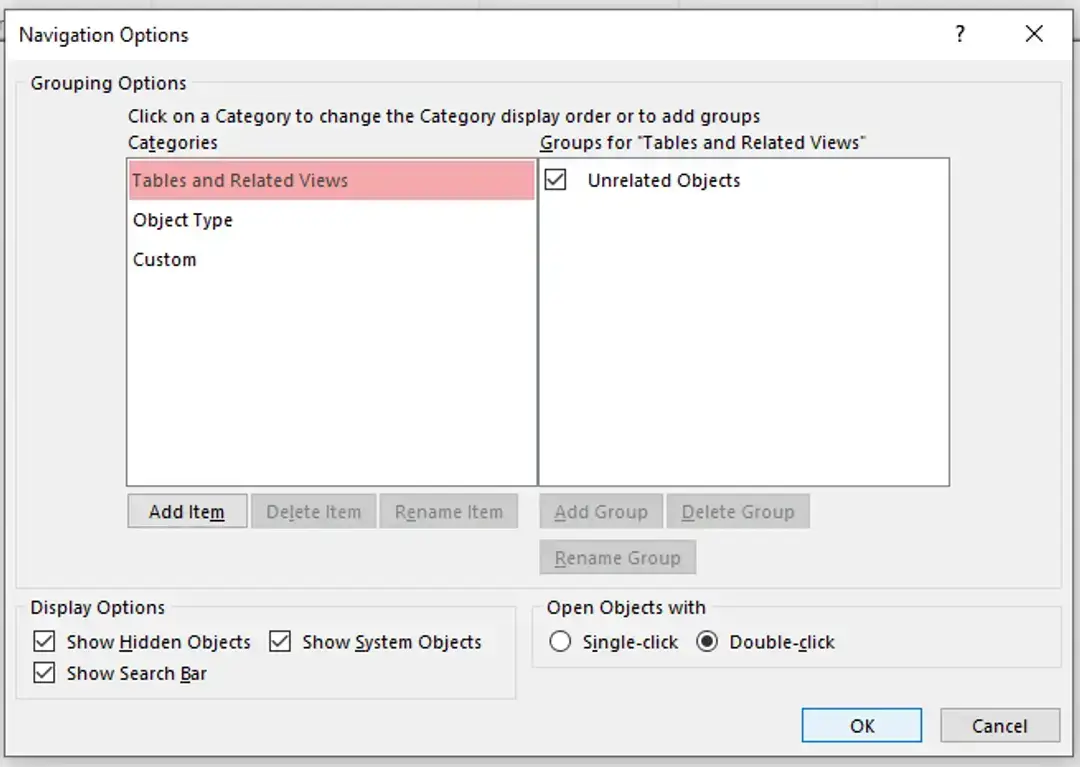
- You will see all the hidden objects and records in each table.

Method 5: Use Compact and Repair
Another significant reason behind the Access table not showing all records issue is database corruption. Database file corruption can be at the file level, object level, or data level. In such a situation, you can use MS Access’s built-in Compact and Repair tool to repair the corrupt database file. Here is what to do:
- Launch MS Access on your PC.
- Click on Open and browse for the problematic database file.

- Once it opens, click on File > Info > Compact & Repair Database.

This will remove unwanted or unused spaces in your database file and fix minor errors or corruption instances.
Method 6: Use an Access Database Repair Tool
If the Compact and Repair utility fails to fix the issue, you can always rely on an advanced third-party Access database repair tool, such as Stellar Repair for Access. This tool can also fix database inconsistencies and restore it to a normal state. You can also use this tool to recover its data and save it to a new file.
You can use this software to repair severely corrupted Access database (.ACCDB and .MDB) files and even recover objects, such as tables, forms, queries, and more.
Download the free version of Stellar Repair for Access and explore its features like scan and preview. If you want to save the repaired database file, you can activate the software by purchasing this license.
Conclusion
There are various reasons why you are facing the Access table not showing all records issue. To resolve the issue, you can try the methods discussed in the article. However, if you are unable to see records due to database file corruption, you can try using Compact and Repair.
But, if you are still unable to see the missing records after using the Compact and Repair, you can use Stellar Repair for Access. It is a specifically designed database file repair software that lets you repair a corrupted database file. You can also use it to recover database objects, such as tables, forms, etc., from a severely corrupted database file. The software supports files created using MS Access 2019, 2016, 2013, 2010, 2007, 2003, and 2002.
Further Reading